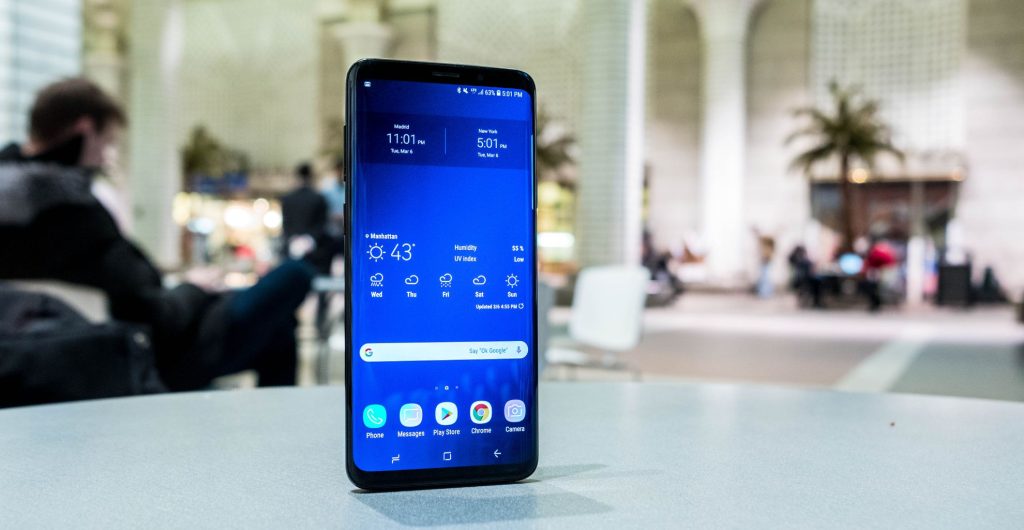
What to Know Before Choosing a Samsung Galaxy S9 Plus?
Before buying a Samsung Galaxy S9 Plus, it’s essential to understand its features, setup options, security, and display capabilities. This Samsung S9 Plus guide covers everything from buy Samsung Galaxy S9 Plus tips and refurbished S9 Plus buying advice to Samsung S9 Plus condition check and an easy S9 Plus checklist. Learn how to configure Always On Display, Bixby, screen sensitivity, App Pair, Samsung Pay, and other key features. We also explore customization, landscape use, camera shortcuts, and practical tips for protecting your investment. This guide will help you make confident decisions while saving costs and avoiding mistakes.
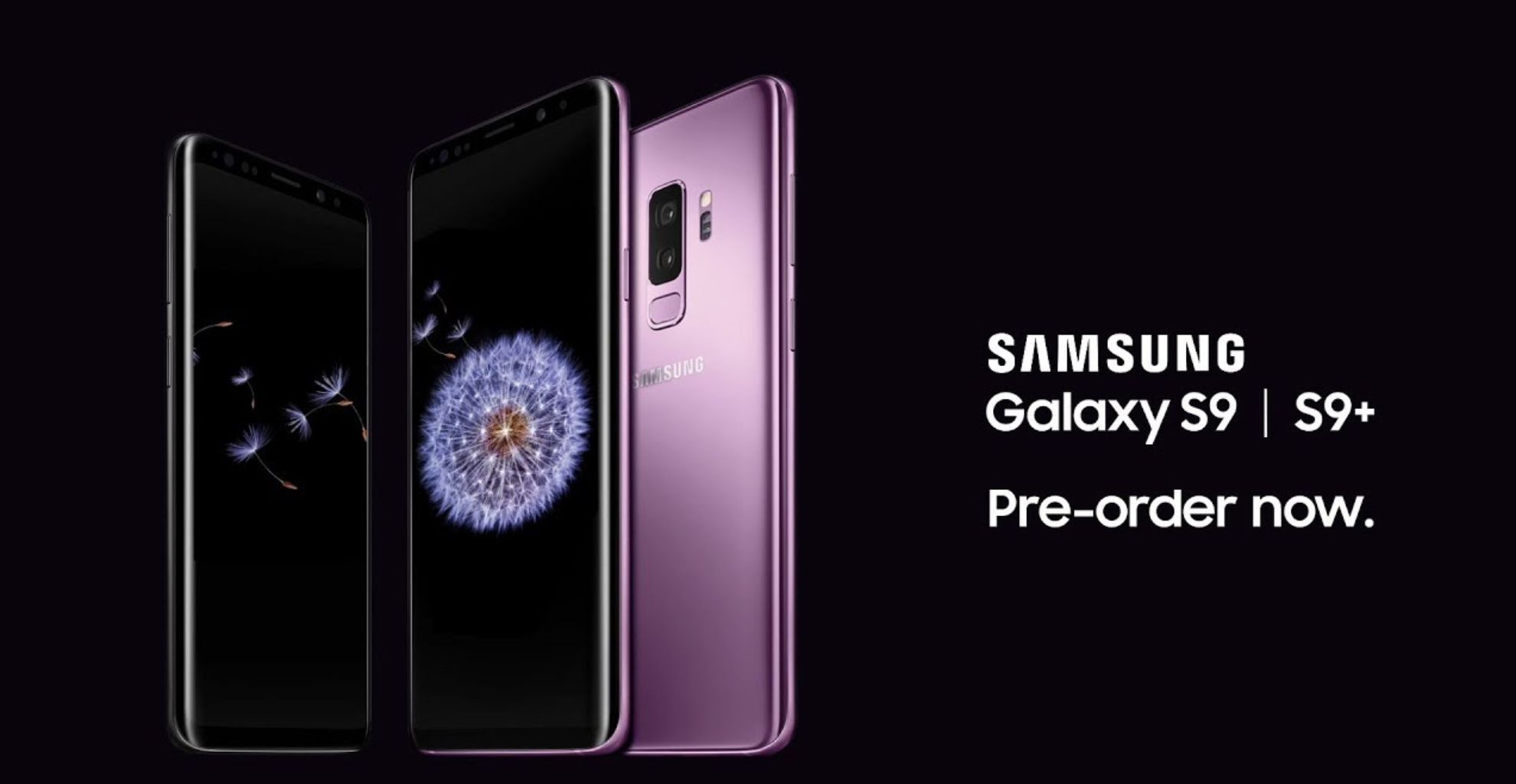
The Samsung S9 Plus is powered by the Snapdragon 845 processor and runs Android Oreo, giving it a powerful, smooth performance. It features a Super AMOLED display with a 2,960 x 1,440 resolution, offering vibrant color, brightness, and sharp images. When considering your Samsung S9 Plus condition check, look for signs of screen damage, scratches, cracks, or backlight issues, especially if buying refurbished S9 Plus models.
Feature
Details
Display
6.2-inch Super AMOLED, 2,960 x 1,440
Processor
Snapdragon 845
OS
Android Oreo
Camera
Dual rear cameras, 12MP, variable aperture
Security
Fingerprint, iris scan, Intelligent Scan
Tips: When inspecting a refurbished S9 Plus, ensure Face ID, fingerprint sensor, and screen touch sensitivity work flawlessly. Check for gaps, uneven edges, or weak spots in the frame.
Security First: Intelligent Scan and Find My Mobile
The S9 Plus offers multiple security options, including fingerprint scanning, iris scanning, and Intelligent Scan, which combines face and iris recognition. These features let you unlock your phone securely and authorize Samsung Pay transactions.
Setting up Find My Mobile ensures you can locate your Galaxy S9 if it’s lost or stolen. Simply log into your Samsung account, activate the service, and you’ll be able to remotely lock, track, or erase your device if needed.
Camera and Quick Launch Tips
The Galaxy S9 Plus has sophisticated cameras capable of DSLR-like results. You can access the camera quickly by pressing the power button twice. For content creators or casual shooters, this feature is a lifesaver when catching live events, sports, or quick snapshots.
Multitasking and App Pair
The App Pair feature lets you launch two apps simultaneously in a split-screen mode, perfect for productivity or research. For example, you can watch a Mets game while typing notes or browsing news. Access this feature via the Edge Panel, add your App Pair, and save it for quick use from the Home screen.
Customizing Your Display and Home Screen
You can set up Always On Display to show the time, notifications, and other info without unlocking the phone. Customize your Clock Style, colors, or widgets for a personalized experience. Adjust screen sensitivity if you use add-on screen protectors, and explore full-screen mode for apps to maximize screen real estate.
Quick Display Settings Table:
Setting
Option
Touch Sensitivity
On/Off
Full-Screen Apps
Enable per app
Always On Display
Clock styles, Widgets
Adaptive Display
AMOLED Cinema, Photo, Basic
Use the home screen in landscape mode if you frequently place your phone on a desk or car dashboard mount. This improves usability for multitasking, reading, or gaming.
Bixby, Samsung Pay, and Personalization
Bixby can help with voice commands, calorie counting, and managing apps. Setting it up takes about 10–15 minutes, including training and customizing cards. Meanwhile, Samsung Pay registration lets you add credit/debit cards and verify transactions using Intelligent Scan or fingerprint.
To make your Samsung S9 Plus truly yours, customize themes, wallpapers, and home screen layouts. Organize apps, widgets, and app drawers to suit your workflow.
Buying Advice and Checklist
When deciding to buy Samsung Galaxy S9 Plus, follow this S9 Plus checklist:
Verify screen and touch responsiveness
Test fingerprint, Face ID, and Intelligent Scan
Check battery health and charging functionality
Inspect camera lenses, microphones, and speaker
Confirm frame integrity: no cracks, scratches, or gaps
Ask for a refurbished S9 Plus buying advice from the shop or community
Following this guide will ensure a cost-effective purchase while avoiding mistakes and frustration.
Expert Tips From iRepair Mobiles on Samsung S9 Plus guide
From my experience at iRepair Mobiles, always double-check refurbished S9 Plus devices for hidden damage. Take your time to explore settings, features, and customization options before finalizing your purchase. Trust official stores for warranty and support, and always weigh the pros and cons when buying from local shops or online marketplaces.